Sweep

Drag an app to the Trash and all of this stays on your Mac.

Sweep moves the app and everything it left behind to the Trash. You can still get it back.

brew install --HEAD pandeynmn/sweep/sweep Full install steps GitHub

Check the list before anything moves

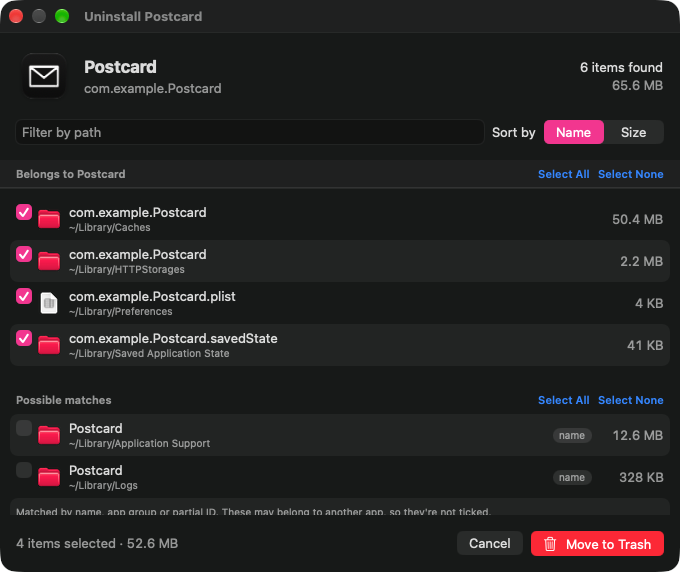
Pick an app and Sweep lists it with every file it found, and how much space each one takes. Nothing goes to the Trash until you say so.

Belongs to the app
Files matched by the app's bundle ID. These start ticked.
Possible matches
Files matched by name, app group or part of the ID, each with the reason it matched. They start unticked because they sometimes belong to a different app.

You can filter by path, sort by name or size, and select all or none in each section.
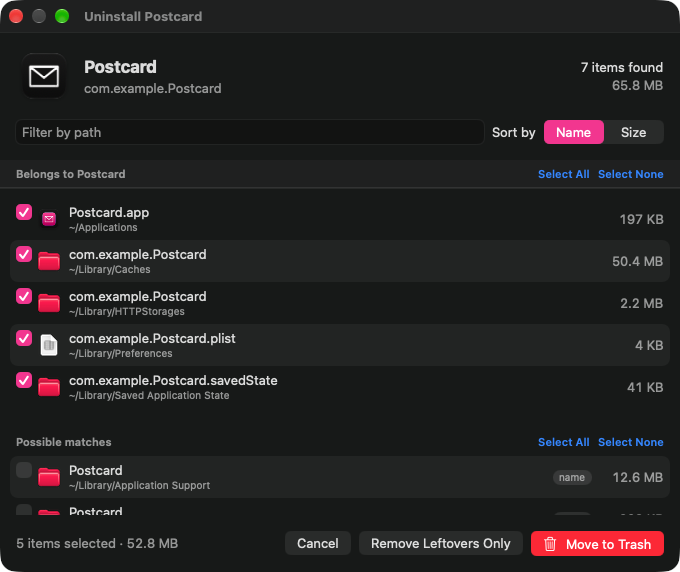
Sweep's review window for an app called Postcard. Postcard.app and four files matched by bundle ID are ticked; two folders matched only by name are listed under Possible matches, unticked.

Other ways to start

Finder
Right-click an app, then Quick Actions › Uninstall with Sweep for the review window, or Delete Everything with Sweep to skip the list and confirm once.
Menu bar
Drop an app on Sweep's trash icon in the menu bar to open its review window.
The Trash
If you drag an app to the Trash yourself, Sweep posts a notification saying what it left behind. Click it to review and remove only the leftovers. On by default; turn it off in Settings.
The review window for Postcard after it was moved to the Trash. It lists only the files the app left behind, not the app itself.

Find what deleted apps left years ago

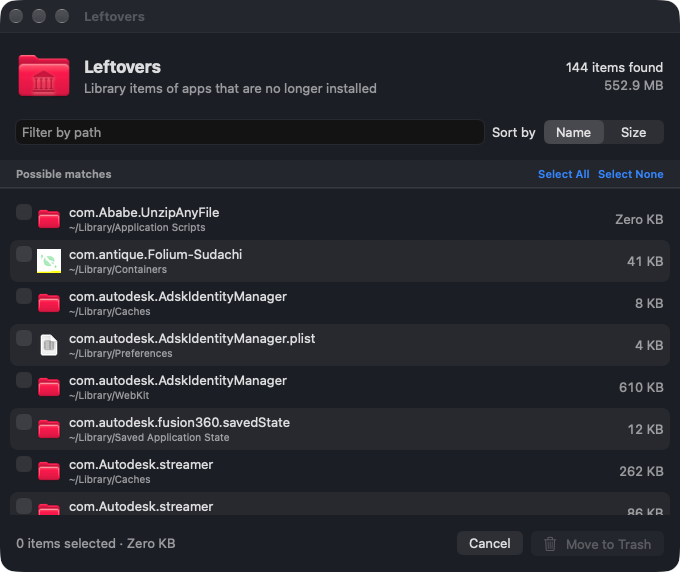
Menu bar › Find Leftovers lists Library items named after apps that are no longer installed. Nothing is ticked; you choose what goes.

Read the list before removing anything. Command-line tools and background services keep files in the Library too, and can look like leftovers.

The Find Leftovers window listing 144 caches, containers and preference files from apps that are no longer installed, none of them ticked.

Undo

Menu bar › Undo Uninstall puts the last uninstall back where it was. It only works until Sweep quits, and it can't restore files that needed your password to remove.

Reset an app

Remove Leftovers Only clears an app's settings and caches but keeps the app, so it starts fresh without a reinstall.

Open at login

Turn it on in Settings and Sweep starts in the menu bar when you log in.

It won't take what isn't the app's

The matching rules are ported from AppCleaner 3.6.8, with stricter defaults: only files that clearly belong to the app are ticked. Loose matches are shown and left for you to opt into.

Script it

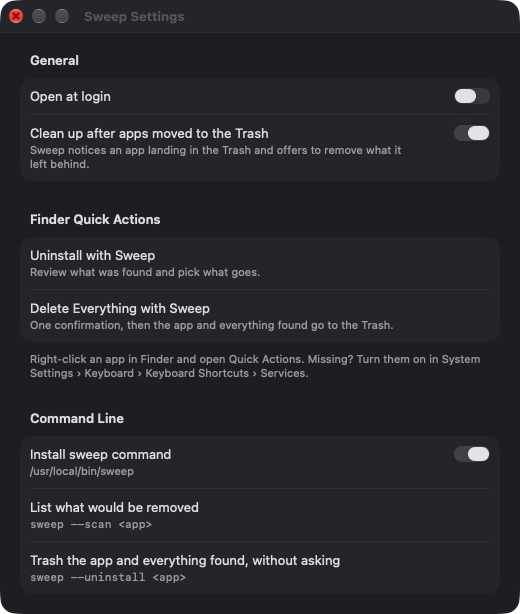
Settings installs a sweep command. --scan prints what would be removed. --uninstall trashes the app and everything found, possible matches included, without asking.

Sweep's Settings window with switches for Open at login, cleaning up after apps moved to the Trash, and installing the sweep command.
$ sweep --help
usage: sweep --scan <app>        list what would be removed
       sweep --uninstall <app>   move the app and everything found to the Trash, no prompt
Right-click an app in Finder › Quick Actions for the same with a review window.

Install

Sweep installs through Homebrew, which builds it from source on your Mac. There's no tagged release yet, so it installs from the latest code.

  1. Add the tap and install.
    brew tap pandeynmn/sweep https://github.com/pandeynmn/sweep
    brew install --HEAD pandeynmn/sweep/sweep
  2. Link the app into Applications and open it once, for the menu bar app and the Finder Quick Actions.
    ln -sfn "$(brew --prefix)/opt/sweep/Sweep.app" ~/Applications/Sweep.app
    open ~/Applications/Sweep.app

Update with brew upgrade --fetch-HEAD sweep.

What it needs